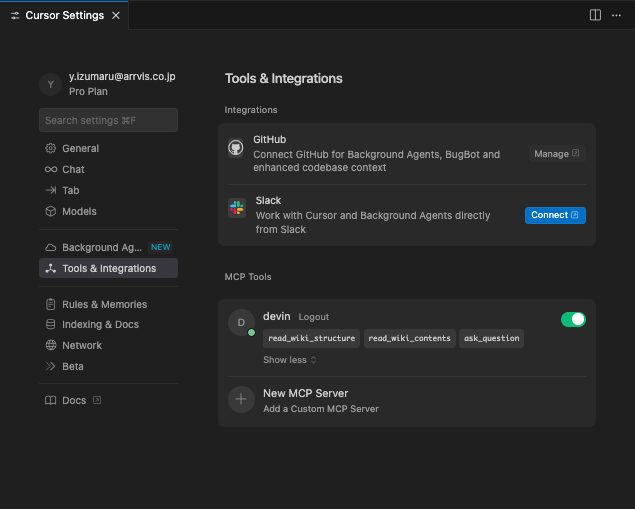
Devins'wikiの内容をCursorにも適用させる
.cursor/rulesにDevins'wikiの内容を吐き出すGithub Actions
name: Update Wiki Documentation

on:
  schedule:
    - cron: '0 0 * * *'
  workflow_dispatch:

jobs:
  update-wiki:
    runs-on: ubuntu-latest
    permissions:
      contents: write
      pull-requests: write

    steps:
      - name: Checkout
        uses: actions/checkout@v4

      - name: Setup node
        uses: actions/setup-node@v4
        with:
          node-version-file: '.node-version'

      - name: Install dependencies
        run: |
          npm install axios

      - name: Update wiki documentation
        id: update-wiki
        run: |
          node .github/scripts/update-wiki-docs-mcp.js
        env:
          GITHUB_REPOSITORY: ${{ github.repository }}
          GITHUB_TOKEN: ${{ secrets.GITHUB_TOKEN }}
          DEVIN_API_KEY: ${{ secrets.DEVIN_API_KEY }}

      - name: Check for changes
        id: git-check
        run: |
          git diff --exit-code || echo "changes=true" >> $GITHUB_OUTPUT

      - name: Create Pull Request on significant changes
        if: steps.git-check.outputs.changes == 'true' && steps.update-wiki.outputs.files_updated == 'true'
        uses: peter-evans/create-pull-request@v5
        with:
          token: ${{ secrets.GITHUB_TOKEN }}
          commit-message: '📝 Update wiki documentation from Devin'
          title: '🤖 Automated Wiki Documentation Update'
          body: |
            ## 📝 Automated Wiki Documentation Update

            This PR contains automated updates to the wiki documentation in `.cursor/docs/`.

            ### Changes Made:
            - Updated documentation from Devin wiki
            - Timestamp: ${{ github.run_id }}

            ### Review Notes:
            - Please review the changes for accuracy
            - The documentation has been automatically formatted
            - Manual review recommended before merging

            ---
            *This PR was automatically generated by the wiki update workflow*
          branch: feature/automated-wiki-update
          base: main
          delete-branch: true
内部で使ってるscript
const fs = require('fs')
const path = require('path')
const axios = require('axios')

const REPO_NAME = process.env.GITHUB_REPOSITORY
const DOCS_DIR = '.cursor/rules'
const DEVIN_API_KEY = process.env.DEVIN_API_KEY
const DEVIN_MCP_URL = 'https://mcp.devin.ai'
const MCP_PROTOCOL_VERSION = '2025-06-18'

let mcpSessionId = null

// 動的に取得されるページリスト
let WIKI_PAGES = []

// HTTPクライアントの設定
const httpClient = axios.create({
  baseURL: DEVIN_MCP_URL,
  timeout: 30000,
  headers: {
    'Content-Type': 'application/json',
    Accept: 'application/json, text/event-stream',
    'MCP-Protocol-Version': MCP_PROTOCOL_VERSION,
    Authorization: `Bearer ${DEVIN_API_KEY}`,
    'User-Agent': 'GitHub-Actions-Wiki-Updater/2.0',
  },
})

async function initializeMcpSession() {
  try {
    console.log('🔄 Initializing MCP session...')

    const response = await httpClient.post('/mcp', {
      jsonrpc: '2.0',
      id: 0,
      method: 'initialize',
      params: {
        protocolVersion: MCP_PROTOCOL_VERSION,
        capabilities: {
          tools: {},
        },
        clientInfo: {
          name: 'GitHub-Actions-Wiki-Updater',
          version: '2.0',
        },
      },
    })

    mcpSessionId = response.headers['mcp-session-id']
    if (mcpSessionId) {
      console.log('✅ MCP session initialized with ID:', mcpSessionId.substring(0, 8) + '...')

      // HTTPクライアントにセッションIDを追加
      httpClient.defaults.headers['Mcp-Session-Id'] = mcpSessionId
    }

    return response.data?.result
  } catch (error) {
    console.error('❌ Error initializing MCP session:', error.message)
    throw error
  }
}

function parseSSEResponse(sseData) {
  const lines = sseData.split('\n')

  for (const line of lines) {
    if (line.startsWith('data: ') && line !== 'data: ping') {
      const dataContent = line.substring(6)
      try {
        return JSON.parse(dataContent)
      } catch (e) {
        console.log('Failed to parse JSON from SSE:', e.message)
      }
    }
  }

  return null
}

// Devin MCP サーバーからwikiの構造を取得
async function fetchWikiStructure() {
  try {
    console.log('🔄 Fetching wiki structure from Devin MCP...')

    const response = await httpClient.post('/mcp', {
      jsonrpc: '2.0',
      id: 1,
      method: 'tools/call',
      params: {
        name: 'read_wiki_structure',
        arguments: {
          repoName: REPO_NAME,
        },
      },
    })

    const parsedResponse = parseSSEResponse(response.data)
    const structure = parsedResponse?.result?.content || parsedResponse?.result || response.data
    console.log('✅ Wiki structure fetched successfully')

    return structure
  } catch (error) {
    console.error('❌ Error fetching wiki structure:', error.message)
    throw error
  }
}

// Devin MCP サーバーからwikiのコンテンツを取得
async function fetchWikiContent() {
  try {
    console.log('🔄 Fetching wiki content from Devin MCP...')

    const response = await httpClient.post('/mcp', {
      jsonrpc: '2.0',
      id: 2,
      method: 'tools/call',
      params: {
        name: 'read_wiki_contents',
        arguments: {
          repoName: REPO_NAME,
        },
      },
    })

    const parsedResponse = parseSSEResponse(response.data)
    const content = parsedResponse?.result?.content || parsedResponse?.result || response.data
    console.log('✅ Wiki content fetched successfully')

    return content
  } catch (error) {
    console.error('❌ Error fetching wiki content:', error.message)
    throw error
  }
}

// wikiの構造からページリストを生成
function generatePageList(structure) {
  console.log('🔍 Processing wiki structure to generate dynamic page list')

  let pages = []
  let wikiText = ''

  if (Array.isArray(structure)) {
    for (const item of structure) {
      if (typeof item === 'object' && item.text) {
        wikiText += item.text + '\n'
      } else if (typeof item === 'string') {
        wikiText += item + '\n'
      }
    }
  } else if (typeof structure === 'object' && structure !== null && structure.text) {
    wikiText = structure.text
  } else if (typeof structure === 'string') {
    wikiText = structure
  }


  if (wikiText.trim()) {
    const lines = wikiText.split('\n')
    let pageIndex = 1

    for (const line of lines) {
      const trimmedLine = line.trim()

      const mainSectionMatch = trimmedLine.match(/^-\s*(\d+)\s+(.+)$/)
      if (mainSectionMatch) {
        const title = mainSectionMatch[2].trim()
        pages.push({
          title: title,
          id: generatePageId(title),
          filename: `${String(pageIndex).padStart(2, '0')}-${generatePageId(title)}.md`
        })
        pageIndex++
        continue
      }

      const subSectionMatch = trimmedLine.match(/^-\s*\d+\.\d+\s+(.+)$/)
      if (subSectionMatch) {
        const title = subSectionMatch[1].trim()
        pages.push({
          title: title,
          id: generatePageId(title),
          filename: `${String(pageIndex).padStart(2, '0')}-${generatePageId(title)}.md`
        })
        pageIndex++
        continue
      }

      const simpleMatch = trimmedLine.match(/^[-*]\s*(.+)$/)
      if (simpleMatch && !trimmedLine.includes(':')) {
        const title = simpleMatch[1].trim()
        if (title && !title.match(/^\d+(\.\d+)*$/)) { // 数字のみの行は除外
          pages.push({
            title: title,
            id: generatePageId(title),
            filename: `${String(pageIndex).padStart(2, '0')}-${generatePageId(title)}.md`
          })
          pageIndex++
        }
      }
    }
  }

  if (pages.length === 0) {
    console.log('⚠️  No pages found in wiki structure - no files will be generated')
  }

  console.log(`📋 Generated ${pages.length} pages from wiki structure:`)
  pages.forEach(page => {
    console.log(`  - ${page.title} (${page.filename})`)
  })

  return pages.map((page, index) => ({
    id: page.id,
    filename: page.filename,
    title: page.title,
    originalIndex: index,
  }))
}

// タイトルからページIDを生成
function generatePageId(title) {
  return title
    .toLowerCase()
    .replace(/[^a-z0-9\s-]/g, '')
    .replace(/\s+/g, '-')
    .replace(/-+/g, '-')
    .replace(/^-|-$/g, '')
}

// wikiのコンテンツを解析してページごとに分割
function parseWikiContent(content) {
  const pages = {}

  if (Array.isArray(content)) {
    for (const item of content) {
      const wikiText = item?.text || item || ''

      const pageSections = wikiText.split(/# Page: /g)

      for (const section of pageSections) {
        if (!section.trim()) continue

        const lines = section.split('\n')
        const pageTitle = lines[0]?.trim()
        const content = lines.slice(1).join('\n').trim()

        if (pageTitle) {
          const pageId = findPageIdByTitle(pageTitle)

          if (pageId) {
            pages[pageId] = {
              title: pageTitle,
              content: content,
              lastModified: new Date().toISOString(),
            }
          }
        }
      }
    }
  } else if (typeof content === 'string') {
    const sections = content.split(/^# /m)

    for (const section of sections) {
      if (!section.trim()) continue

      const lines = section.split('\n')
      const title = lines[0].trim()
      const body = lines.slice(1).join('\n').trim()

      const pageId = findPageIdByTitle(title)
      if (pageId) {
        pages[pageId] = {
          title: title,
          content: `# ${title}\n\n${body}`,
          lastModified: new Date().toISOString(),
        }
      }
    }
  } else if (typeof content === 'object') {
    Object.keys(content).forEach((key) => {
      const pageData = content[key]
      const pageId = findPageIdByTitle(key) || generatePageId(key)

      pages[pageId] = {
        title: pageData.title || key,
        content: pageData.content || pageData,
        lastModified: new Date().toISOString(),
      }
    })
  }

  return pages
}

// タイトルからページIDを見つける
function findPageIdByTitle(title) {
  const normalizedTitle = title.toLowerCase()

  for (const page of WIKI_PAGES) {
    if (page.title.toLowerCase() === normalizedTitle) {
      return page.id
    }
  }

  for (const page of WIKI_PAGES) {
    const pageTitle = page.title.toLowerCase()
    if (normalizedTitle.includes(pageTitle) && pageTitle.length > 3) {
      return page.id
    }
  }

  return generatePageId(title)
}

// ローカルファイルを書き込み(常に上書き)
async function writeAllFiles(wikiContent) {
  for (const page of WIKI_PAGES) {
    const filePath = path.join(DOCS_DIR, page.filename)

    try {
      // 新しいコンテンツを取得(プレースホルダーは使用しない)
      let newContent = ''
      if (wikiContent[page.id]) {
        newContent = wikiContent[page.id].content || wikiContent[page.id]
      }

      // コンテンツが空の場合はスキップ
      if (!newContent) {
        console.log(`⏭️  Skipping empty content: ${page.filename}`)
        continue
      }

      fs.writeFileSync(filePath, newContent, 'utf8')
      console.log(`✅ Written: ${page.filename}`)
    } catch (error) {
      console.error(`❌ Error writing ${page.filename}:`, error.message)
    }
  }
}


// README.mdの更新
async function updateReadme() {
  const readmePath = path.join(DOCS_DIR, 'README.md')
  const timestamp = new Date().toISOString()

  // Extract repository name for title generation
  const repoName = REPO_NAME.split('/')[1] || 'Unknown'
  const projectTitle = repoName.split('-').map(word =>
    word.charAt(0).toUpperCase() + word.slice(1)
  ).join(' ')

  const readmeContent = `# ${projectTitle} Documentation

This directory contains automatically updated documentation for the ${repoName} project.

## 📚 Available Documentation

${WIKI_PAGES.map((page) => `- [${page.title}](${page.filename})`).join('\n')}

## 🔄 Update Information

- **Last Updated**: ${timestamp}
- **Total Pages**: ${WIKI_PAGES.length}

## 🤖 Automation

This documentation is automatically updated daily via GitHub Actions.
The source content is synchronized from the Devin wiki using MCP tools.

### Automated Update Schedule

- **Daily**: Every day at 9:00 AM JST (00:00 UTC)
- **Manual**: Can be triggered manually through GitHub Actions

### Update Process

1. Delete existing documentation directory
2. Fetch latest content from Devin wiki
3. Overwrite with fresh content
4. Create PR if git diff shows changes

## 🛠️ Manual Update

To manually update the documentation:

\`\`\`bash
# Via MCP (if available)
node .github/scripts/update-wiki-docs-mcp.js

# Via API fallback
node .github/scripts/update-wiki-docs.js
\`\`\`

## 🔧 Configuration

The automated update system is configured through:

- **Workflow**: \`.github/workflows/update-wiki-docs.yml\`
- **MCP Script**: \`.github/scripts/update-wiki-docs-mcp.js\`
- **API Fallback**: \`.github/scripts/update-wiki-docs.js\`

### Environment Variables

- \`GITHUB_TOKEN\`: Required for automated commits
- \`FORCE_UPDATE\`: Optional, forces update even if no changes detected

## 📋 Features

- ✅ Daily automated updates
- ✅ Manual trigger support
- ✅ Simple overwrite approach
- ✅ Automated commit and PR creation
- ✅ Multiple data sources (MCP + API fallback)
- ✅ Error handling and logging
- ✅ Automatic README generation

## 🔍 Troubleshooting

### Common Issues

1. **MCP Connection Failed**: The system will fallback to API calls
2. **API Rate Limits**: Updates may be delayed during high usage
3. **Permission Errors**: Ensure \`GITHUB_TOKEN\` has proper permissions

### Logs

Check GitHub Actions logs for detailed information about update processes:
- Go to Actions tab in the repository
- Select "Update Wiki Documentation" workflow
- Review the latest run for detailed logs

## 🚀 Getting Started

1. The documentation is automatically maintained
2. No manual intervention required for regular updates
3. Review automatically created PRs for significant changes
4. Use the documentation as a reference for project development

## 🤝 Contributing

While this documentation is automatically generated, you can:

1. **Report Issues**: If you notice outdated or incorrect information
2. **Suggest Improvements**: For the automation scripts or documentation structure
3. **Manual Updates**: For urgent corrections (will be overwritten on next auto-update)

## 🔗 Links

- [Devin Wiki](https://app.devin.ai/wiki/${REPO_NAME})
- [GitHub Actions Workflow](.github/workflows/update-wiki-docs.yml)
- [Project Repository](https://github.com/${REPO_NAME})

---

*This documentation is automatically generated and updated.*
`

  fs.writeFileSync(readmePath, readmeContent, 'utf8')
  console.log('✅ Updated README.md')
}

// メイン実行関数
async function main() {
  try {
    console.log('🚀 Starting Devin MCP-based wiki documentation update...')
    console.log(`📂 Repository: ${REPO_NAME}`)

    // 必要な環境変数をチェック
    if (!DEVIN_API_KEY) {
      throw new Error('DEVIN_API_KEY environment variable is required')
    }

    if (fs.existsSync(DOCS_DIR)) {
      fs.rmSync(DOCS_DIR, { recursive: true, force: true })
      console.log(`🗑️  Deleted existing directory: ${DOCS_DIR}`)
    }
    fs.mkdirSync(DOCS_DIR, { recursive: true })
    console.log(`📁 Created directory: ${DOCS_DIR}`)

    await initializeMcpSession()

    // wikiの構造を取得
    const wikiStructure = await fetchWikiStructure()

    // ページリストを生成
    WIKI_PAGES = generatePageList(wikiStructure)
    console.log(`📋 Generated ${WIKI_PAGES.length} pages from wiki structure`)

    // wikiの内容を取得
    const rawWikiContent = await fetchWikiContent()

    // wikiの内容を解析
    const wikiContent = parseWikiContent(rawWikiContent)

    // ローカルファイルを更新(常に上書き)
    await writeAllFiles(wikiContent)

    // READMEを更新
    await updateReadme()

    console.log('✅ Devin MCP-based wiki documentation update completed!')
    console.log('📝 All files have been overwritten with fresh wiki content')
  } catch (error) {
    console.error('❌ Fatal error:', error)
    console.error('Stack trace:', error.stack)

    // 詳細なエラー情報を出力
    if (error.response) {
      console.error('Response data:', error.response.data)
      console.error('Response status:', error.response.status)
    }

    process.exit(1)
  }
}

// 実行
main()